

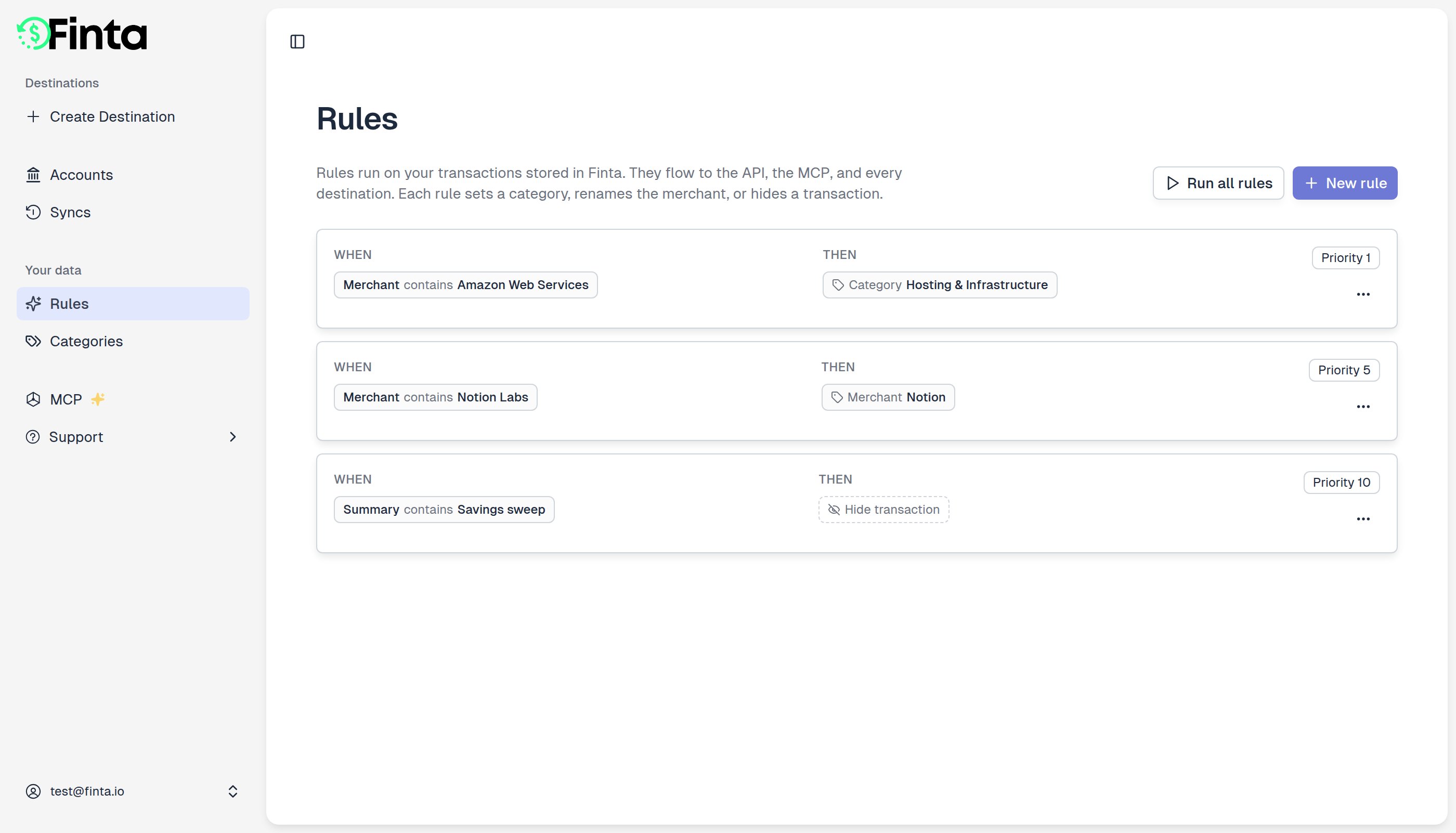
How a rule works
A rule has two parts:- Conditions decide which transactions match. You can match on the merchant, description, amount, account, and more. When you add more than one condition, a transaction has to match all of them.
- Outcomes decide what happens to a matching transaction. A rule can set the category, set the merchant name, or hide the transaction.
Create a rule
- Go to Your data → Rules and click New rule.
- Under When, choose a condition and fill in a value. Add more conditions to narrow things down.
- Under Then, choose one or more outcomes.
- Click Save rule.
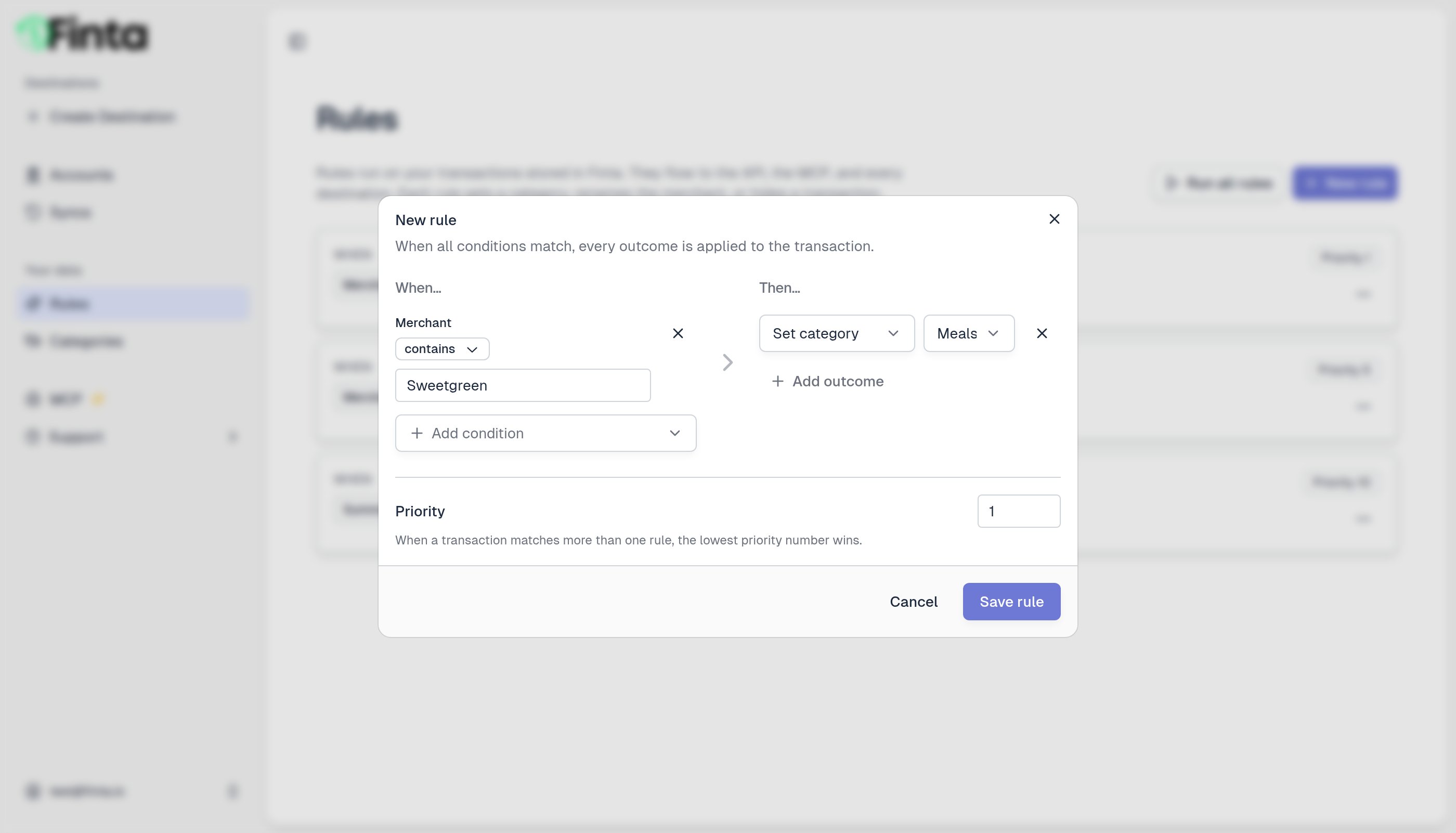
Conditions you can match on
Outcomes you can apply
Run a rule
New rules apply automatically to transactions as they sync in. To apply a rule to transactions you already have, click Run all rules, or open a single rule’s menu and choose Run this rule. Finta tells you how many transactions were scanned, matched, and updated.Running rules is safe to repeat. A transaction that already matches the desired outcome is left as is.
Good to know
- You’re always in control. If you set a transaction’s category by hand (in the app, the API, or the MCP), a rule will never change it.
- When two rules conflict, the lower priority number wins. Set a rule’s priority in the editor.
- Rules vs. Sync rules. The rules here apply to your stored data and reach every destination. If you also sync to a destination, that destination has its own Sync rules for customizing what gets written there. See Custom transaction categories.