> ## Documentation Index
> Fetch the complete documentation index at: https://docs.finta.io/llms.txt
> Use this file to discover all available pages before exploring further.
# Rules
> Automatically categorize, rename, or hide transactions with rules that run on your stored data.
Rules let you clean up your transactions automatically. Each rule watches for transactions that match conditions you set, then applies an outcome, like setting a category or hiding a transaction.
Rules run on the data Finta stores for you, so they require [storage mode](/getting-started/storage-mode). Because they shape your stored data, their results show up everywhere your data goes: in the app, the [API](/api/v2/overview), the [MCP](/mcp/overview), and every destination you sync to.
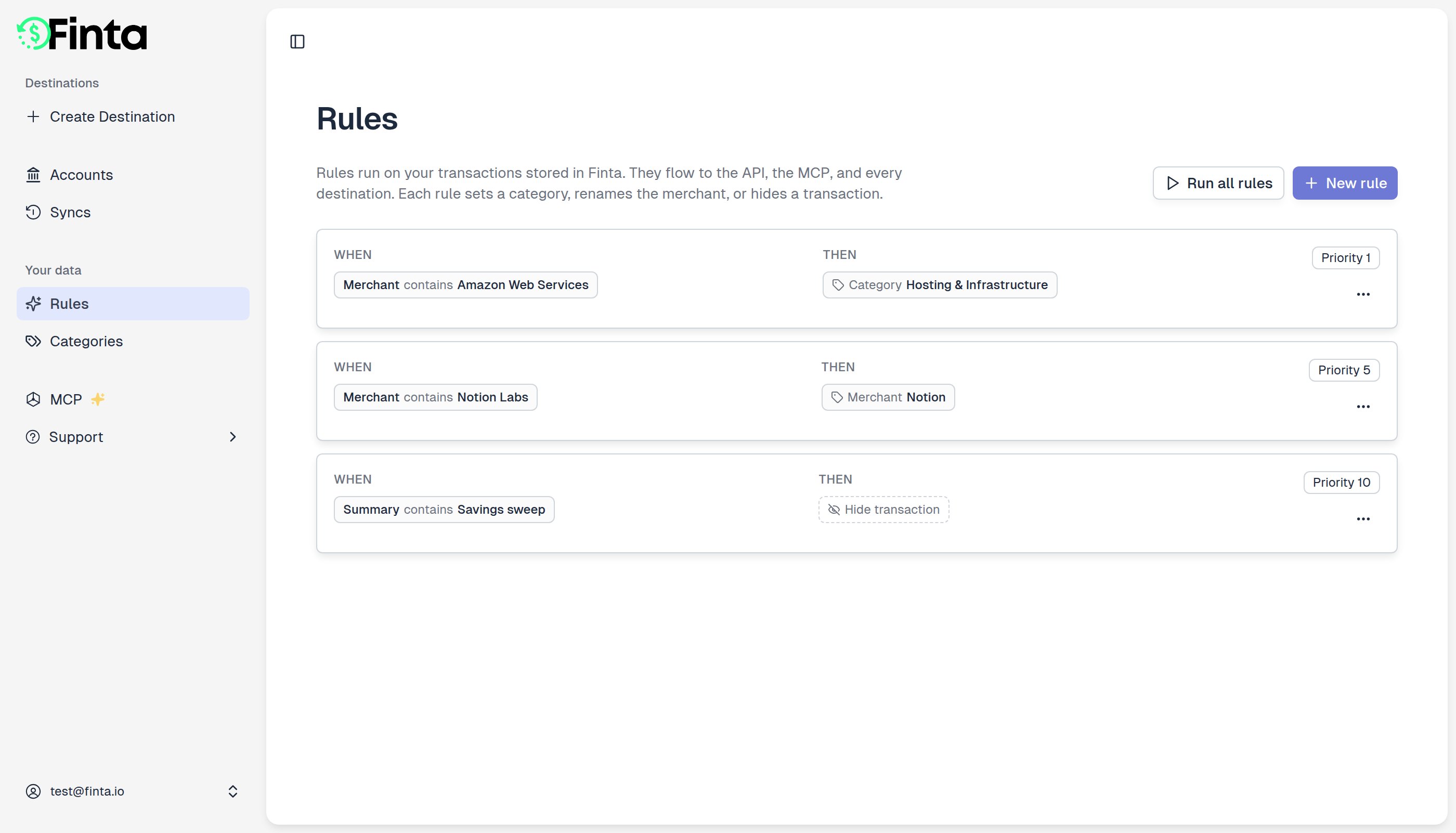 Find Rules under **Your data** in the sidebar (it appears once storage mode is on).
## How a rule works
A rule has two parts:
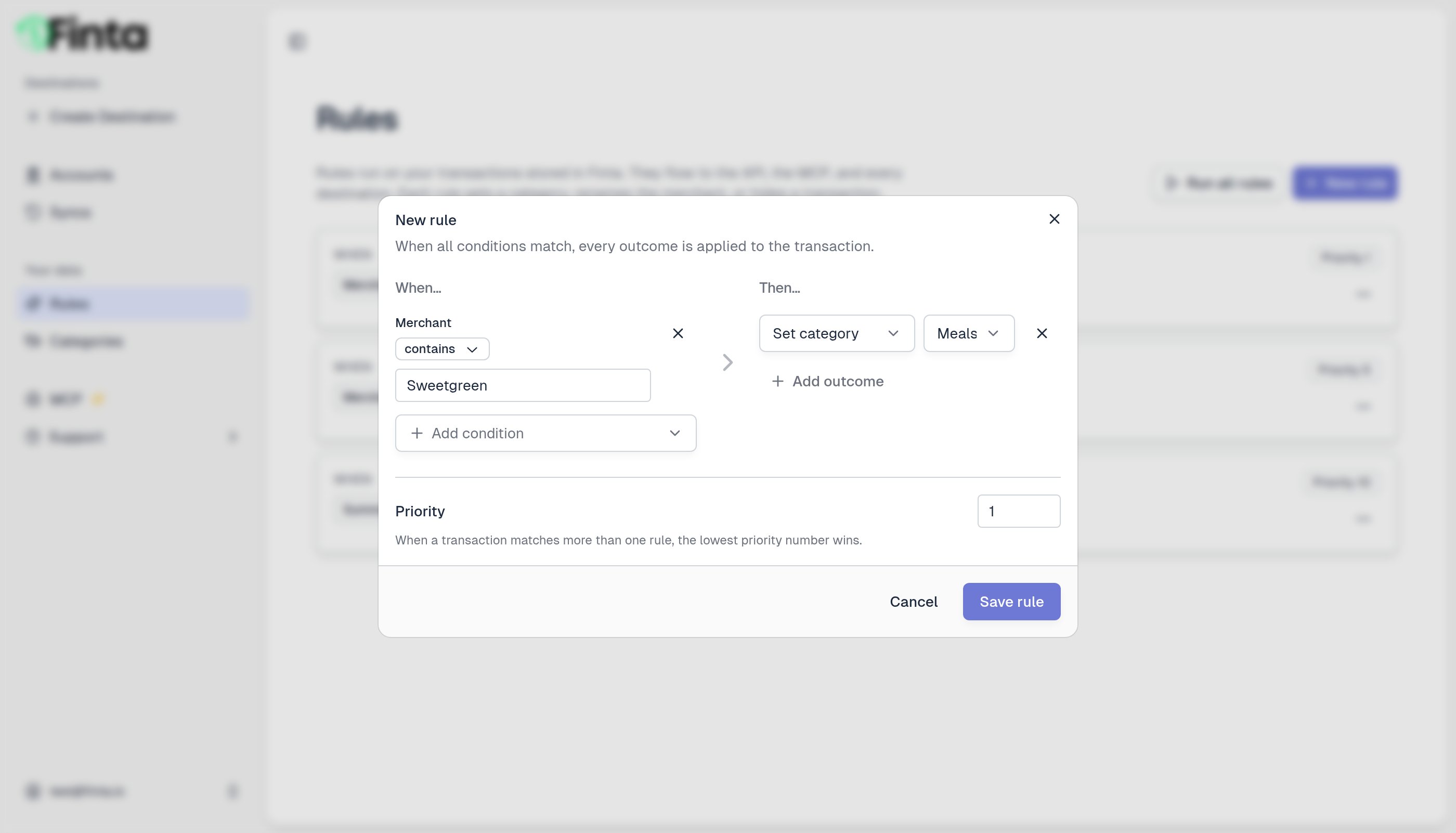
* **Conditions** decide which transactions match. You can match on the merchant, description, amount, account, and more. When you add more than one condition, a transaction has to match all of them.
* **Outcomes** decide what happens to a matching transaction. A rule can set the category, set the merchant name, or hide the transaction.
## Create a rule
1. Go to **Your data → Rules** and click **New rule**.
2. Under **When**, choose a condition and fill in a value. Add more conditions to narrow things down.
3. Under **Then**, choose one or more outcomes.
4. Click **Save rule**.
Find Rules under **Your data** in the sidebar (it appears once storage mode is on).
## How a rule works
A rule has two parts:
* **Conditions** decide which transactions match. You can match on the merchant, description, amount, account, and more. When you add more than one condition, a transaction has to match all of them.
* **Outcomes** decide what happens to a matching transaction. A rule can set the category, set the merchant name, or hide the transaction.
## Create a rule
1. Go to **Your data → Rules** and click **New rule**.
2. Under **When**, choose a condition and fill in a value. Add more conditions to narrow things down.
3. Under **Then**, choose one or more outcomes.
4. Click **Save rule**.
 ### Conditions you can match on
| Condition | What it matches |
| ------------------------ | --------------------------------------------- |
| **Merchant** | The merchant name (for example, "Sweetgreen") |
| **Summary** | The transaction description |
| **Original Description** | The raw description from your bank |
| **Amount** | The amount, as an inflow or outflow |
| **Account** | A specific bank account |
| **Transaction Day** | The day of the month (1 to 31) |
### Outcomes you can apply
| Outcome | What it does |
| -------------------- | ------------------------------------------------------------------------------------------------------------------------------------------------- |
| **Set category** | Assigns one of your [categories](/your-data/categories) |
| **Set merchant** | Replaces the merchant name (great for cleaning up messy bank descriptions) |
| **Hide transaction** | Excludes the transaction from your default views and from default API and MCP results (you can still opt in to hidden items with `includeHidden`) |
## Run a rule
New rules apply automatically to transactions as they sync in. To apply a rule to transactions you already have, click **Run all rules**, or open a single rule's menu and choose **Run this rule**. Finta tells you how many transactions were scanned, matched, and updated.
Running rules is safe to repeat. A transaction that already matches the desired outcome is left as is.
## Good to know
* **You're always in control.** If you set a transaction's category by hand (in the app, the API, or the MCP), a rule will never change it.
* **When two rules conflict, the lower priority number wins.** Set a rule's priority in the editor.
* **Rules vs. Sync rules.** The rules here apply to your stored data and reach every destination. If you also sync to a destination, that destination has its own **Sync rules** for customizing what gets written there. See [Custom transaction categories](/destinations/custom-transaction-categories).
### Conditions you can match on
| Condition | What it matches |
| ------------------------ | --------------------------------------------- |
| **Merchant** | The merchant name (for example, "Sweetgreen") |
| **Summary** | The transaction description |
| **Original Description** | The raw description from your bank |
| **Amount** | The amount, as an inflow or outflow |
| **Account** | A specific bank account |
| **Transaction Day** | The day of the month (1 to 31) |
### Outcomes you can apply
| Outcome | What it does |
| -------------------- | ------------------------------------------------------------------------------------------------------------------------------------------------- |
| **Set category** | Assigns one of your [categories](/your-data/categories) |
| **Set merchant** | Replaces the merchant name (great for cleaning up messy bank descriptions) |
| **Hide transaction** | Excludes the transaction from your default views and from default API and MCP results (you can still opt in to hidden items with `includeHidden`) |
## Run a rule
New rules apply automatically to transactions as they sync in. To apply a rule to transactions you already have, click **Run all rules**, or open a single rule's menu and choose **Run this rule**. Finta tells you how many transactions were scanned, matched, and updated.
Running rules is safe to repeat. A transaction that already matches the desired outcome is left as is.
## Good to know
* **You're always in control.** If you set a transaction's category by hand (in the app, the API, or the MCP), a rule will never change it.
* **When two rules conflict, the lower priority number wins.** Set a rule's priority in the editor.
* **Rules vs. Sync rules.** The rules here apply to your stored data and reach every destination. If you also sync to a destination, that destination has its own **Sync rules** for customizing what gets written there. See [Custom transaction categories](/destinations/custom-transaction-categories).