> ## Documentation Index
> Fetch the complete documentation index at: https://docs.finta.io/llms.txt
> Use this file to discover all available pages before exploring further.
# Plaid: Connect a Bank
> Connect a US or Canadian bank, credit card, or investment account to Finta using Plaid. Finta never sees or stores your bank credentials.
Finta uses [Plaid](https://plaid.com) to connect US and Canadian financial institutions. Plaid handles authentication directly with your bank, so Finta never sees or stores your username or password.
## Before you start
Make sure you have a Finta account and an active subscription. Standard plans support up to 10 bank connections. Pro plans support unlimited connections.
## How to connect a bank
1. Go to the **Accounts** page in the [Finta dashboard](https://app.finta.io)
2. Click **Add Bank Connection**
3. In the dialog, search for your bank or financial institution
4. Select your institution from the results
5. Choose the data you want from that institution — **Transactions**, **Investments**, and/or **Liabilities** (only the types your institution supports are shown), then click **Continue**
6. Plaid Link opens in a secure overlay — enter your bank login credentials
7. If your bank uses multi-factor authentication, complete the MFA step
8. Select the accounts you want to sync to Finta
9. Click **Continue** to finish
Finta immediately pulls your account data and begins syncing. The first sync may take a minute or two depending on how much history your bank makes available.
Finta requests read-only access to your financial data. Your bank credentials are handled entirely by Plaid and are never transmitted to or stored by Finta.
## Choosing what data to connect
After you select an institution, Finta asks **"What data do you want?"** and shows the data types that institution supports through Plaid:
* **Transactions** — bank, cash, and card transaction history
* **Investments** — brokerage accounts, holdings, securities, and investment activity
* **Liabilities** — loans and credit liability balances
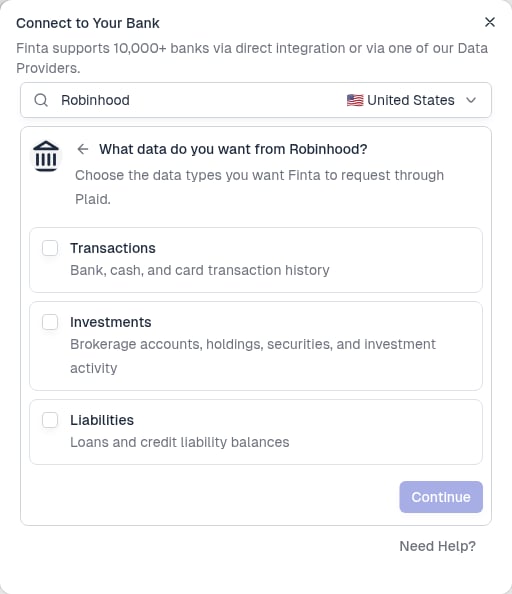 Pick the types that match the accounts you want to sync, then click **Continue**. Choosing the right data types up front helps Plaid show the correct accounts — and avoids the "no accounts found" error covered below.
Select only the data types you actually have at that institution. For a brokerage like Robinhood, choose **Investments**; for a checking account, choose **Transactions**. Selecting more types than an account supports can cause Plaid to return no accounts. See [Plaid Says You Have No Accounts](/bank-connections/plaid/no-accounts-found).
## What data Finta syncs
After connecting, Finta syncs the following data depending on the account type:
| Account type | Data synced |
| ------------------- | ------------------------------------------- |
| Checking / Savings | Transactions, balances |
| Credit cards | Transactions, balances |
| Investment accounts | Holdings, investment transactions, balances |
| Loans | Balances |
## After connecting
Your connection appears on the **Accounts** page. Finta syncs automatically whenever Plaid notifies us of new activity at your bank — usually within minutes of a transaction posting.
You don't need to trigger syncs manually. If you want to route this connection's data to a destination, see [Create a Destination](/destinations/create-destination).
## Plan limits
| Plan | Bank connections allowed |
| -------- | ------------------------ |
| Standard | Up to 10 |
| Pro | Unlimited |
If you're on the Standard plan and have already connected 10 bank connections, you'll be prompted to upgrade to Pro before adding more.
## Troubleshooting
**Can't find your institution:** Search by the full bank name or the name shown on your bank's website. Some banks operate under a different name in Plaid (e.g., a regional credit union may be listed under its full legal name). If your institution doesn't appear, it may not be supported by Plaid.
**Login fails during Plaid Link:** Double-check your credentials on your bank's website first. If your bank recently required a password update or security verification, complete that on the bank's site before trying again in Finta.
**MFA not working:** Make sure you have access to the phone number or authenticator app associated with your bank account. Some banks require you to approve the connection from their mobile app.
**"No eligible accounts" / "No matching accounts found":** Plaid couldn't find accounts that match every data type you selected. Exit Plaid, start over, and this time select fewer data types — for example, **Investments** only for a brokerage. See [Plaid Says You Have No Accounts](/bank-connections/plaid/no-accounts-found) for the full fix.
**Connection succeeds but no accounts appear:** Some account types (certain business accounts, newer account types) may not be available through Plaid even if the connection is successful. Use the **Update accounts** option from the three-dot menu on the connection card to see all available accounts.
## Next steps
Re-authenticate, add accounts, and troubleshoot an existing connection
Set up where your synced data goes
Pick the types that match the accounts you want to sync, then click **Continue**. Choosing the right data types up front helps Plaid show the correct accounts — and avoids the "no accounts found" error covered below.
Select only the data types you actually have at that institution. For a brokerage like Robinhood, choose **Investments**; for a checking account, choose **Transactions**. Selecting more types than an account supports can cause Plaid to return no accounts. See [Plaid Says You Have No Accounts](/bank-connections/plaid/no-accounts-found).
## What data Finta syncs
After connecting, Finta syncs the following data depending on the account type:
| Account type | Data synced |
| ------------------- | ------------------------------------------- |
| Checking / Savings | Transactions, balances |
| Credit cards | Transactions, balances |
| Investment accounts | Holdings, investment transactions, balances |
| Loans | Balances |
## After connecting
Your connection appears on the **Accounts** page. Finta syncs automatically whenever Plaid notifies us of new activity at your bank — usually within minutes of a transaction posting.
You don't need to trigger syncs manually. If you want to route this connection's data to a destination, see [Create a Destination](/destinations/create-destination).
## Plan limits
| Plan | Bank connections allowed |
| -------- | ------------------------ |
| Standard | Up to 10 |
| Pro | Unlimited |
If you're on the Standard plan and have already connected 10 bank connections, you'll be prompted to upgrade to Pro before adding more.
## Troubleshooting
**Can't find your institution:** Search by the full bank name or the name shown on your bank's website. Some banks operate under a different name in Plaid (e.g., a regional credit union may be listed under its full legal name). If your institution doesn't appear, it may not be supported by Plaid.
**Login fails during Plaid Link:** Double-check your credentials on your bank's website first. If your bank recently required a password update or security verification, complete that on the bank's site before trying again in Finta.
**MFA not working:** Make sure you have access to the phone number or authenticator app associated with your bank account. Some banks require you to approve the connection from their mobile app.
**"No eligible accounts" / "No matching accounts found":** Plaid couldn't find accounts that match every data type you selected. Exit Plaid, start over, and this time select fewer data types — for example, **Investments** only for a brokerage. See [Plaid Says You Have No Accounts](/bank-connections/plaid/no-accounts-found) for the full fix.
**Connection succeeds but no accounts appear:** Some account types (certain business accounts, newer account types) may not be available through Plaid even if the connection is successful. Use the **Update accounts** option from the three-dot menu on the connection card to see all available accounts.
## Next steps
Re-authenticate, add accounts, and troubleshoot an existing connection
Set up where your synced data goes